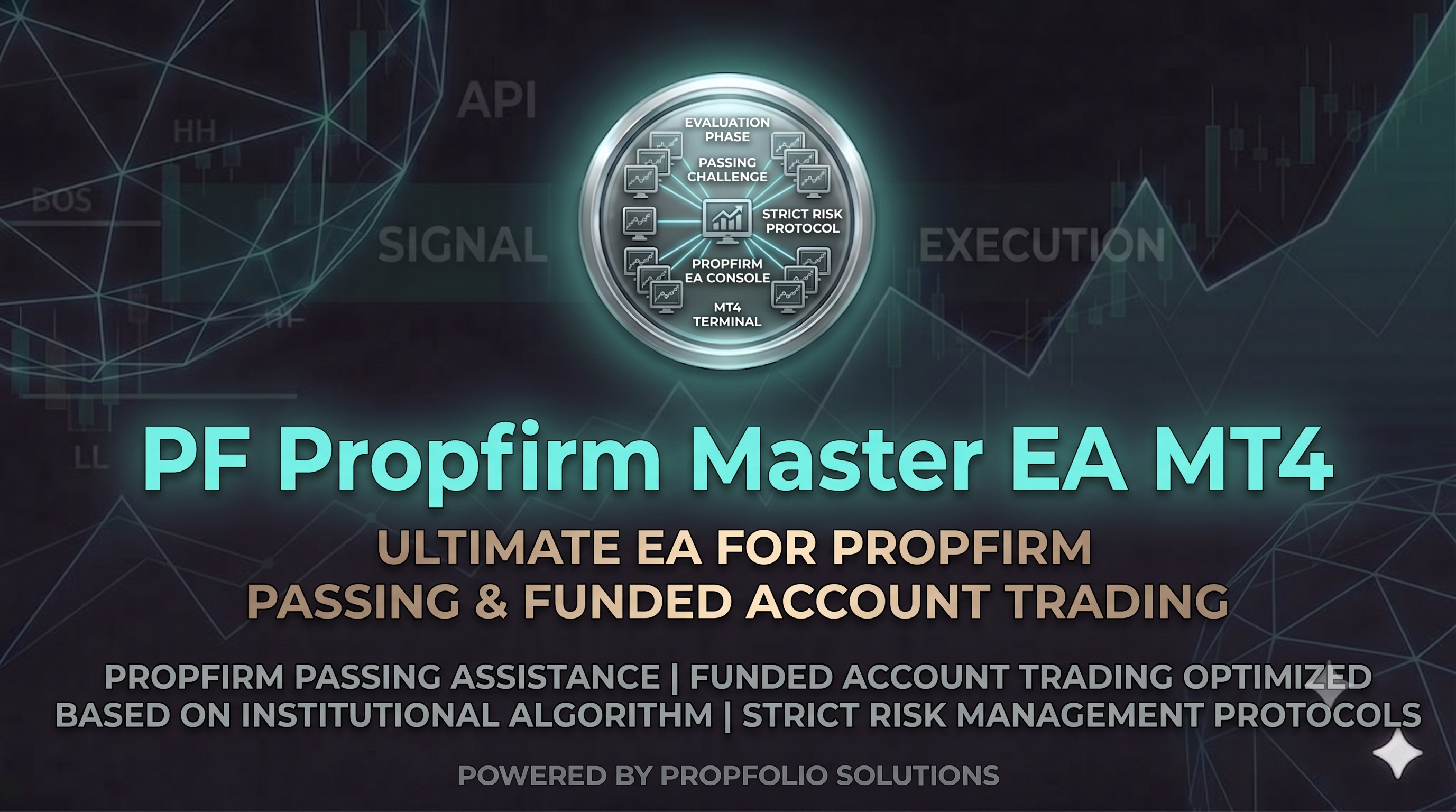
PF Prop firm Master EA MT4( Invite Only )
The Ultimate Automated Solution for Prop Firm Passing & Funded Account Growth Dominate your proprietary trading firm challenges and scale your funded capital with the PF Propfirm Master EA MT4 by Propfolio Solutions. Engineered specifically to navigate the strict trading parameters of modern prop firms, this Expert Advisor removes emotional trading and executes with machine-like precision. Whether you are in the evaluation phase or managing a live funded account, this EA is your all-in-one automated trading partner. Core Features & Capabilities: Prop Firm Passing Assistance: Specifically coded to target profit goals while staying well within the boundaries of trailing, equity, and balance-based drawdown rules. Funded Account Optimized: Once funded, the EA shifts focus to sustainable, long-term capital preservation and consistent growth, ensuring you keep your funded status and secure regular payouts. Institutional-Grade Algorithm: Powered by advanced logic that tracks order flow and institutional footprints, executing trades based on high-probability setups like Fair Value Gaps (FVGs) and pure price action. Strict Risk Management Protocols: Built-in safeguards automatically calculate dynamic lot sizing based on your account equity. It features hard daily loss limits and maximum drawdown protections to ensure full compliance with leading firms like FTMO, FundedNext, FundingPips, and E8 Markets. Set-and-Forget Architecture: Fully optimized for MetaTrader 4, requiring minimal manual intervention once your specific risk parameters are configured.
Choose License
📋 Setup Instructions
Follow these steps to install, authenticate, and activate the PF Propfirm Master EA on your MT4 terminal:
Step 1: Download the EA Files
Download the PF_Propfirm_Master_EA.ex4 file provided after your purchase. Save it to an easily accessible location on your computer, like your Desktop.
Step 2: Open MT4 Data Folder
Launch your MetaTrader 4 terminal.
In the top-left menu, click on File > Open Data Folder.
Step 3: Transfer the EA File
In the Data Folder window that opens, navigate to the MQL4 folder, then open the Experts folder.
Drag and drop (or copy and paste) the PF_Propfirm_Master_EA.ex4 file into this Experts folder.
Close the file explorer window.
Step 4: Refresh MT4 Navigator
Return to your MT4 terminal.
Locate the Navigator panel on the left side (if it's not visible, press Ctrl + N).
Right-click anywhere inside the Navigator panel and select Refresh.
You should now see the "PF Propfirm Master EA" listed under the "Expert Advisors" section.
Step 5: Configure Chart and Auto Trading
Open the chart for the specific currency pair and timeframe you wish to trade (e.g., EURUSD on the 5-Minute chart).
At the top of the MT4 platform, locate the AutoTrading button and click it so that it turns Green.
Step 6: Allow WebRequest URL (For License Validation)
In the top menu of MT4, click on Tools and select Options.
Navigate to the Expert Advisors tab.
Check the box next to "Allow WebRequest for listed URL".
Double-click the green "+" icon (or the "add new URL" text space) and type exactly: [https://propfolio.cloud](https://propfolio.cloud).
Click OK to save these settings.
Step 7: Attach the EA and Enter License Key
In the Navigator panel, click and drag the PF Propfirm Master EA onto your open chart.
A properties window will pop up.
Go to the Common tab and ensure the box next to "Allow live trading" is checked.
Navigate to the Inputs tab.
Locate the License Key field and paste your unique license key into the value column.
Configure your other specific risk parameters (e.g., Daily Drawdown Limit, Max Risk Per Trade, Lot Size).
Click OK.
Step 8: Verification
Look at the top-right corner of your chart. You should see the name of the EA next to a Smiling Face :). If the face is frowning :(, double-check that the AutoTrading button at the top of the terminal is green and that "Allow live trading" is checked in the EA properties.